WordPress SEO Checklist: Settings to Check Before and After Launch
Work through the WordPress settings that decide whether a new site can be crawled and indexed: visibility, permalinks, HTTPS, sitemaps and comments.

Practical, step-by-step website launch and SEO health guides.
Showing 97 to 120 of 133 guides (page 5 of 6)
Work through the WordPress settings that decide whether a new site can be crawled and indexed: visibility, permalinks, HTTPS, sitemaps and comments.
 Search Engines · 8 min read
Learn what each Bing Webmaster Tools report shows, from Search Performance and URL Inspection to Site Scan and AI Performance, and how to act on the findings.
Search Engines · 7 min read
Compare Search Console domain and URL-prefix properties, see which URLs each covers, and set up the right mix with the correct verification method.
Search Engines · 8 min read
Connect a Google Analytics 4 web data stream to Search Console, publish the two search reports and read clicks and sessions side by side without adding them.
Search Engines · 8 min read
Check the Manual actions report, understand what Google's reviewers flagged, fix every affected page and write a reconsideration request that gets reviewed.
Search Engines · 8 min read
Read the Search Console page indexing report: what each Not indexed reason means, which ones need a fix, and how to validate your changes.
Search Engines · 9 min read
Learn what clicks, impressions, CTR and average position really count in the Search Console performance report, and how to filter, export and compare the data.
Search Engines · 3 min read
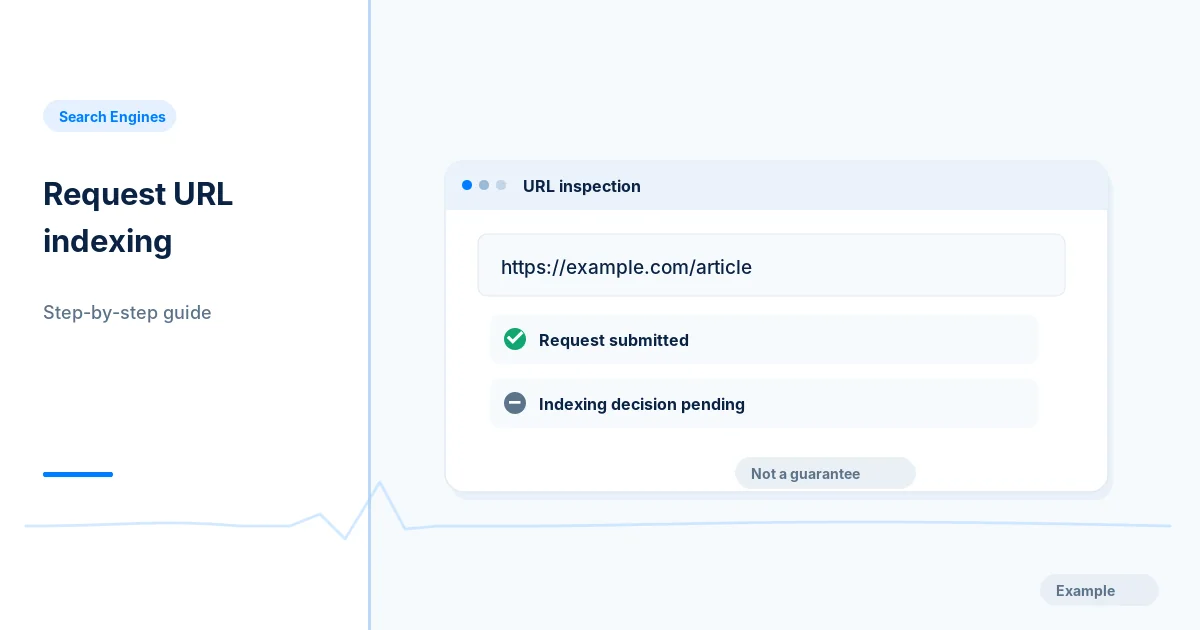
Use URL Inspection and Request Indexing for a new or fixed page, after checking eligibility, and follow up with evidence rather than repeat requests.
Search Engines · 8 min read
Fix Search Console ownership verification errors for the HTML file, meta tag, DNS record, Google Analytics and Tag Manager methods, and add a backup method.
Search Engines · 3 min read
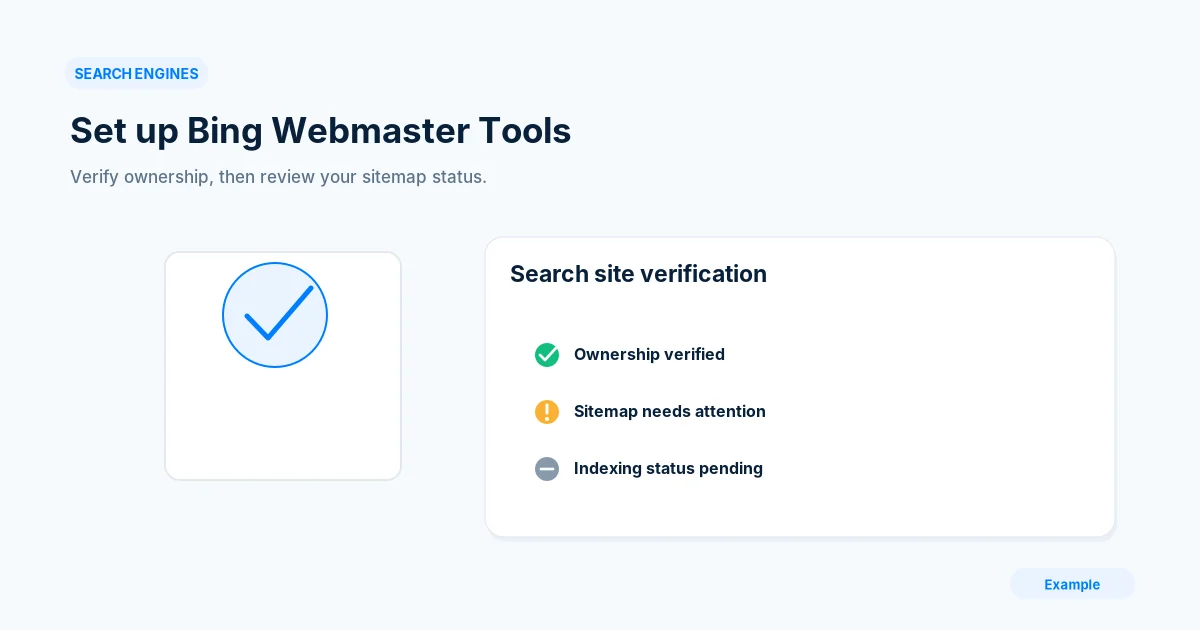
Add your site to Bing Webmaster Tools, verify ownership, submit a sitemap and set a weekly check, even if Google Search Console already works.
Search Engines · 3 min read
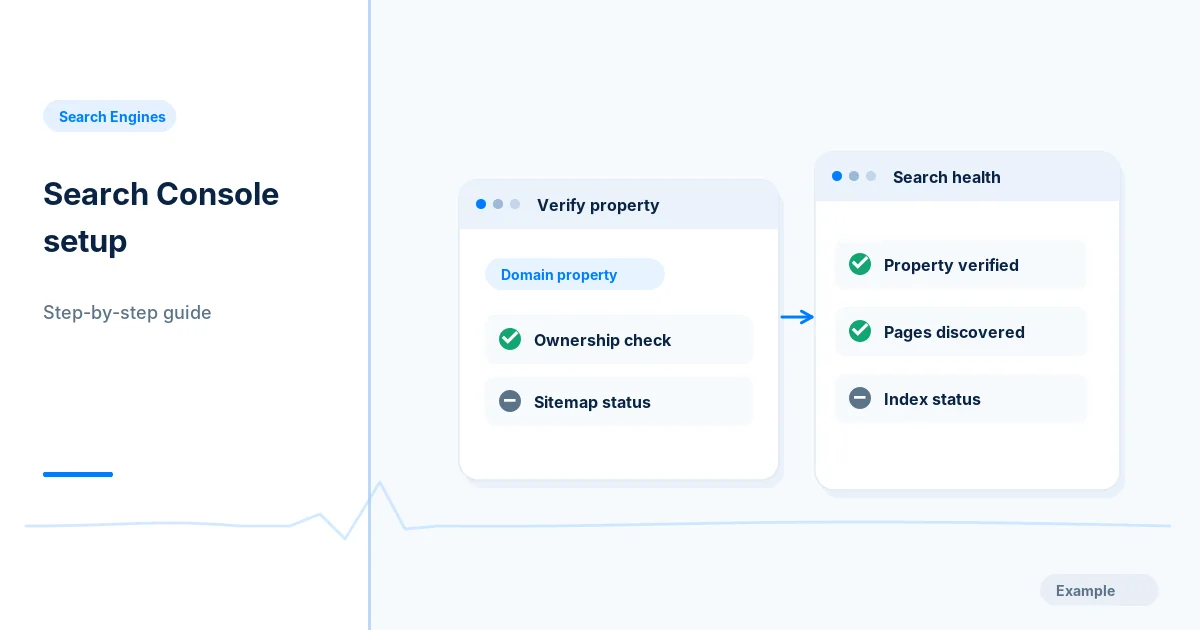
Add and verify your site in Google Search Console, inspect the home page, submit a sitemap and set up a simple routine for checking indexing reports.
Search Engines · 2 min read
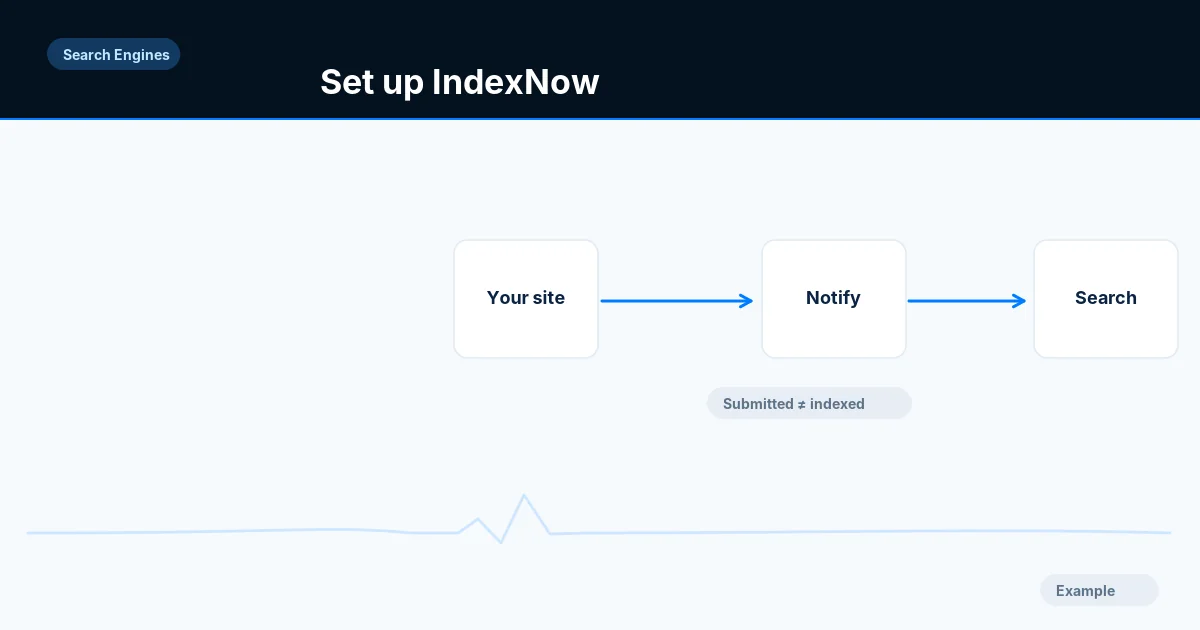
Set up IndexNow with a key file so Bing and other participating engines learn of changed URLs, and log responses without assuming indexing.
Search Engines · 8 min read
Use the Search Console URL Inspection live test and rendered HTML to check a page as Google fetches it, and learn which indexing problems it cannot detect.
 Security · 7 min read
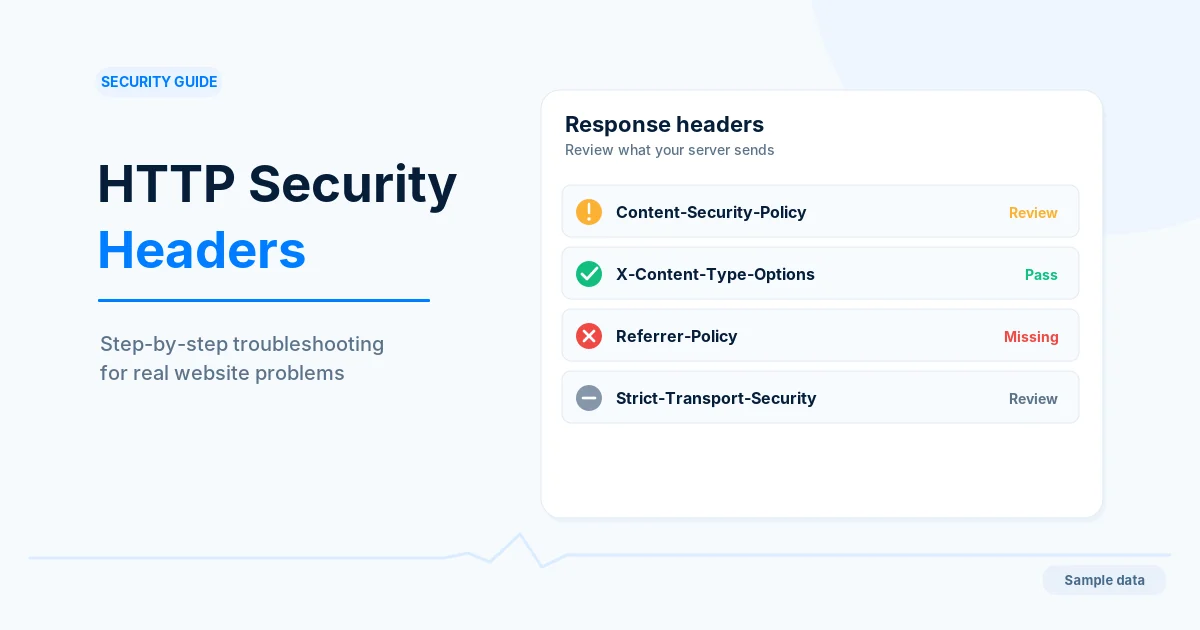
Add the common browser security headers safely: Content-Security-Policy in report-only first, nosniff, framing, Referrer-Policy and Permissions-Policy.
Security · 7 min read
Review the Cloudflare settings that affect crawling: SSL mode, bot protection, Under Attack mode, Rocket Loader and managed robots.txt.
Security · 7 min read
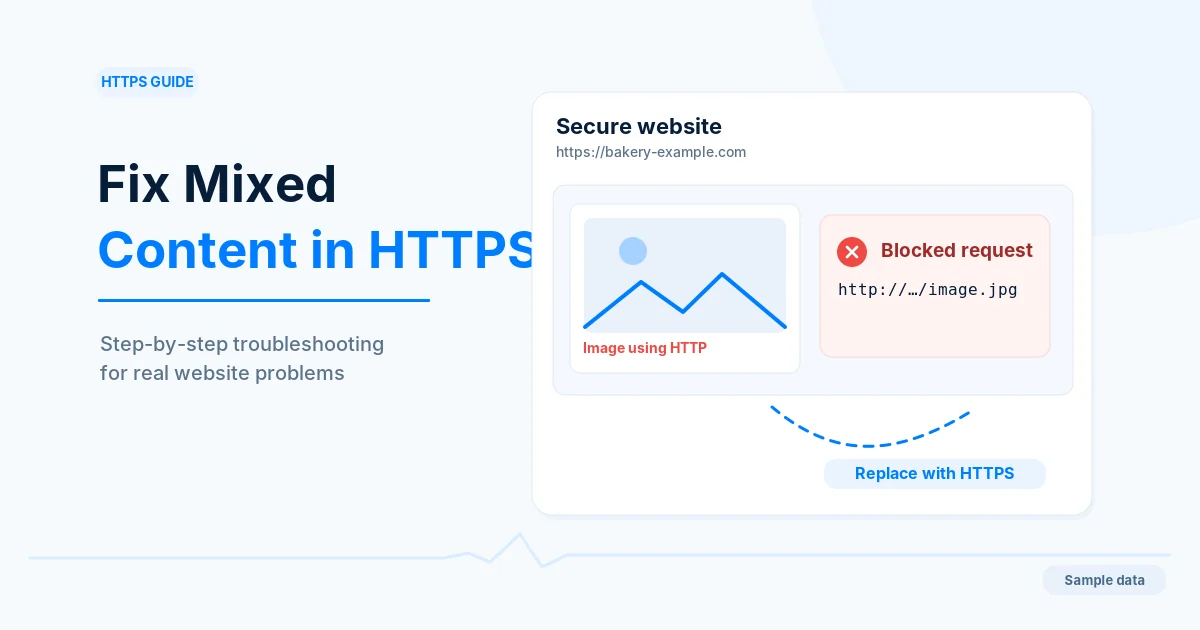
Find images, scripts and styles loaded over http:// on HTTPS pages, fix them at the source and confirm the browser warnings are gone.
Security · 10 min read
Spot injected spam pages and links on a hacked site, contain the breach, clean and harden it, then ask Google to review the fix in Search Console.
Security · 11 min read
Add the Strict-Transport-Security header in stages, from a five-minute max-age to one year, and decide whether the HSTS preload list is right for you.
Security · 9 min read
Install a certificate, fix mixed content, add canonicals and 301 redirects, update Search Console and sitemaps, then add HSTS once everything works.
Security · 8 min read
Read the Search Console security issues report, safely confirm hacked content or malware, clean the site, close the cause and request a security review.
Security · 11 min read
Find out why a browser or crawler rejects your HTTPS certificate, test expiry, hostname and chain with OpenSSL, and fix it without breaking redirects.
Security · 9 min read
Build a content security policy in report-only mode, fix what it flags, then enforce it with nonces or hashes so scripts and styles keep working.
 Sitemaps · 3 min read
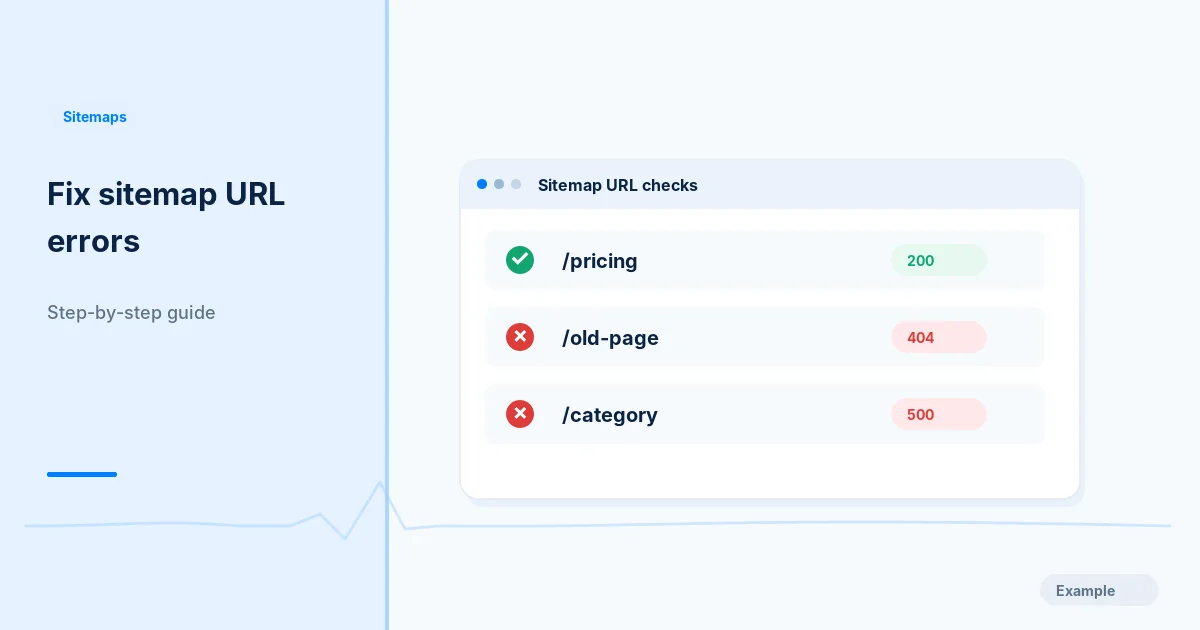
Find the URLs in your sitemap that return 404 or 500, trace the shared cause, then restore, redirect or remove them and fix how the sitemap is generated.
Sitemaps · 3 min read
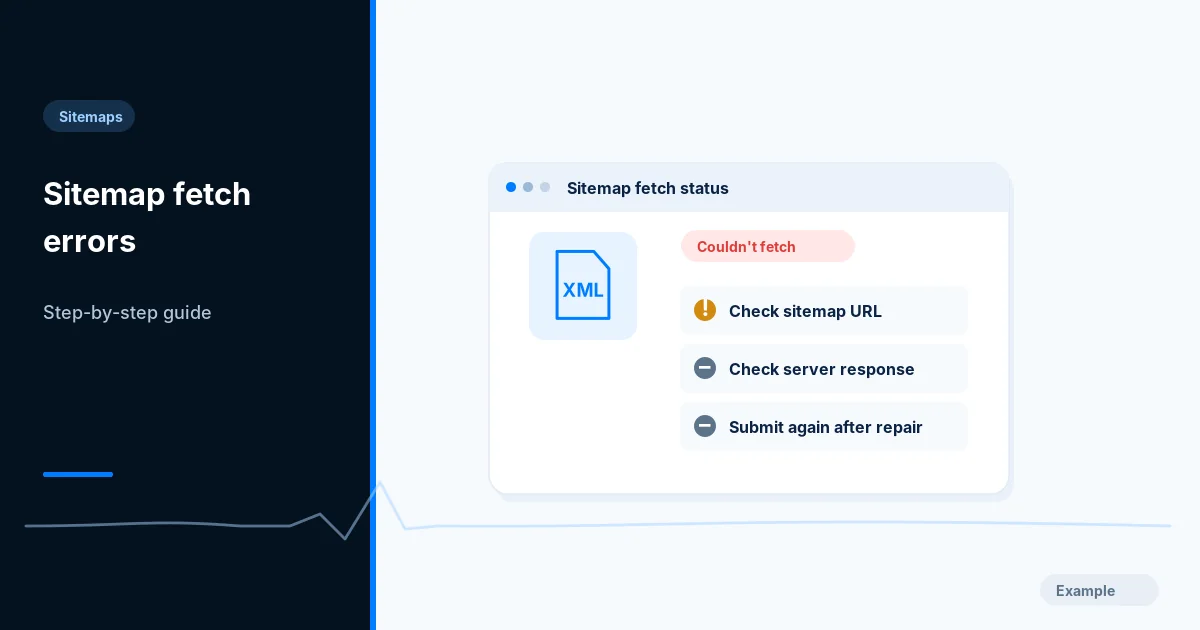
Diagnose a Search Console sitemap error by fetching the file yourself, checking status, XML and access rules, and resubmitting only after a real fix.