
 Crawvix Editorial Team
· Published October 28, 2026 · Last updated October 28, 2026 · 7 min read
Crawvix Editorial Team
· Published October 28, 2026 · Last updated October 28, 2026 · 7 min read
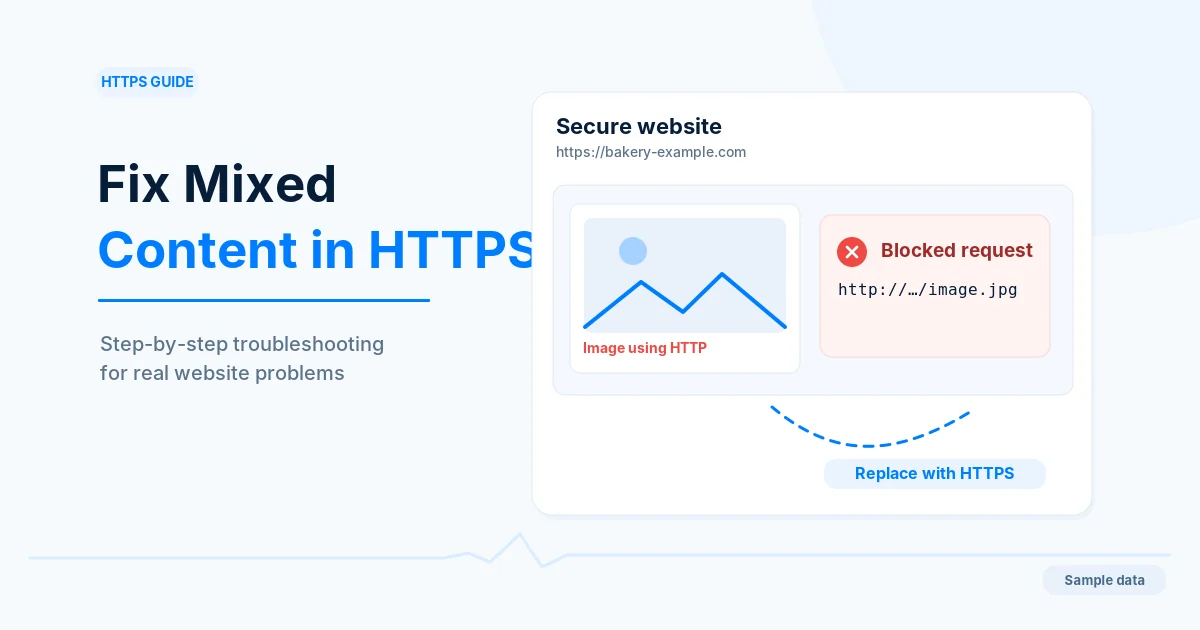
Mixed content happens when a page loaded over HTTPS asks for some of its parts, such as an image, script or stylesheet, over plain HTTP. The secure page is then only partly secure. Browsers react depending on the type of resource: some are blocked, some are upgraded to HTTPS when possible, and some trigger warnings. Fixing it keeps your pages working and avoids the page being marked as not fully secure. It does not guarantee rankings.
Before you begin
Make sure your site already works over HTTPS and that you know where its content comes from: your CMS or database, theme or template files, plugins, a CDN or storage service, and third-party embeds. Take a backup before any bulk change to content. If you edit a database, work on a copy first.
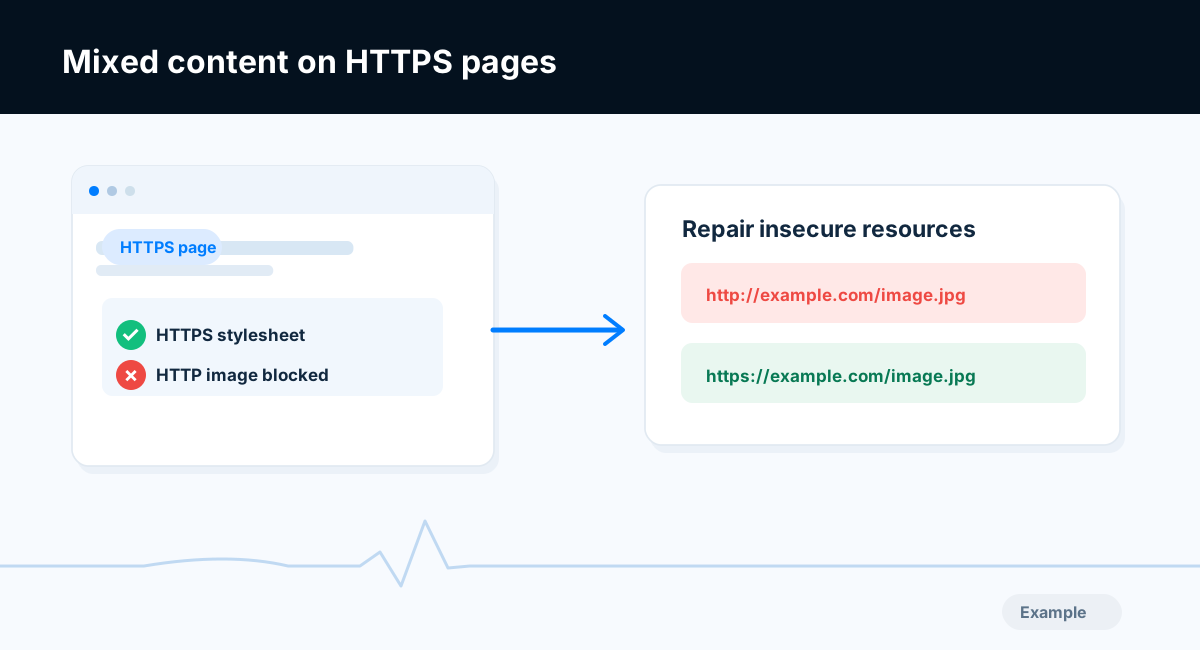
Example diagram, not a result from any real site.
Step-by-step instructions
Step 1: Find what is being loaded insecurely
Open the page in Chrome, press F12 and look at the Console tab. Mixed content messages name the page and the insecure address that was requested or blocked. The Network tab can be filtered by http:// addresses. You can also view the page source and search for http://. The Crawvix mixed content check lists up to five example resources for each affected page and says how many of the pages it loaded are affected.
What success looks like: You have a list of the insecure addresses and the pages that use them.
Step 2: Know what the Crawvix check can and cannot see
The check reads the HTML of pages loaded over HTTPS. It looks at the src of images, scripts, iframes, sources, video, audio and embeds, and at stylesheet and icon links, and reports those that start with http://. It does not see resources requested from inside CSS files (such as url(http://...) for a background image), addresses built by JavaScript while the page runs, or image srcset values. A normal link to an http page (an a tag) is not mixed content. Use the browser console for what the check cannot see. If no HTTPS page was loaded in a scan, the check reports Not checked yet.
What success looks like: You know which kinds of mixed content you need to look for by hand.
Step 3: Fix each address at its source
For each insecure address:
Check that the same resource exists over HTTPS by opening the
https://version. If it loads, change the address.If the resource is on your own site, use a relative address such as
/images/photo.jpg, which follows the page's scheme.If the resource is third-party and has no HTTPS version, replace it, host a copy if its license allows, or remove it.
Fix the source: a theme or template file, a plugin setting, a CSS file, a page in your CMS, a hard-coded site address in your configuration, or content stored in a database. Update the site address setting in your CMS to
https://.For old content stored in a database, use a search and replace tool you trust, test it on a copy, and note that some systems store data in a way that a plain text replace corrupts. Use a tool that understands your platform.
What success looks like: The insecure addresses no longer appear in the page source or console.
Step 4: Use upgrade-insecure-requests only as a safety net
The upgrade-insecure-requests directive of a Content-Security-Policy tells browsers to request insecure addresses over HTTPS instead:
Content-Security-Policy: upgrade-insecure-requests
It helps while you clean up old content. It only works when the resource really is available over HTTPS, and it does not repair the addresses stored in your pages or protect other software that reads them. Treat it as a stopgap, not the fix. If you already send a Content-Security-Policy, add the directive to the existing policy (see the security headers guide).
What success looks like: Either the addresses are fixed or the safety net is in place while you finish.
Step 5: Redirect HTTP to HTTPS and consider HSTS
Make sure visitors who type or follow an http:// address end up on the HTTPS version with one redirect and no chains (see the redirect guide). Once HTTPS works everywhere, Strict-Transport-Security (HSTS) tells browsers to use HTTPS for later visits. Introduce it carefully, as described in the security headers guide.
What success looks like: Visiting the http:// version leads to the https:// page in one step.
Step 6: Clear caches and recheck
Clear your CMS, plugin and CDN caches, because they can keep serving old HTML or combined CSS and JavaScript files that still contain the old addresses. Reload with the cache bypassed, check the console on each key page type, and run the Crawvix mixed content check again.
What success looks like: The console shows no mixed content messages on your key pages and the check passes.
Final verification checklist
The browser console shows no mixed content messages on the home page and key page templates.
Images, scripts, stylesheets, fonts, frames and media load from
https://or relative addresses.Addresses inside CSS files and scripts were checked by hand.
The CMS site address and any plugin or theme settings use
https://.Visiting an
http://address redirects to thehttps://page in one step.Caches were cleared and the pages were rechecked.
Common mistakes to avoid
Fixing the page you noticed but not the template or database content behind it.
Replacing
http://withhttps://without checking that the resource exists over HTTPS.Relying only on
upgrade-insecure-requestsand leaving the old addresses in place.Forgetting resources inside CSS files, such as background images and fonts.
Running a database replace without a backup or a copy.
Ignoring caches that keep serving old HTML.
Troubleshooting
The browser still warns after I fixed the page
A cache is probably serving old HTML, CSS or JavaScript. Clear the CMS, plugin and CDN caches and reload with the cache bypassed.
The check passes but the console shows mixed content
The check reads page HTML only. The insecure request may come from CSS, JavaScript or an image srcset. Use the console message to find it.
A third-party widget loads insecure content
Look for an HTTPS embed code from the vendor, update the widget, or remove it.
The image fails to load after I switched to https
The host may not support HTTPS for that file. Use another source or host the image yourself.
Forms still show a warning
A form that posts to an http:// address is a separate security problem from mixed content. Change the form action to HTTPS.
Search and replace broke my content
Restore from your backup and use a tool that understands how your system stores data.
Frequently asked questions
What is the difference between a mixed content image and a mixed content script?
Browsers treat them differently. Scripts, stylesheets, frames and similar resources can be blocked outright because they can change the page. Passive resources such as images may be upgraded or loaded with a warning, depending on the browser. Behavior has changed over time, so check the current documentation.
Does an http link to another site count as mixed content?
No. A link to another page is not loaded as part of your page. Update links to your own pages anyway, to avoid needless redirects.
Will fixing mixed content improve my rankings?
We cannot promise that. It keeps pages working and secure for visitors.
Is a redirect to HTTPS enough?
No. The redirect handles the page address. Mixed content concerns resources requested by pages that are already on HTTPS.
Related guides
Official references
Browser behavior changes over time, so a human should check these sources for the current wording before this guide is published.
Next step: See how Crawvix checks a website and capture a baseline once scanning opens. This guide provides technical information, not a guarantee of security, rankings or index inclusion.