
 Crawvix Editorial Team
· Published October 28, 2026 · Last updated October 28, 2026 · 7 min read
Crawvix Editorial Team
· Published October 28, 2026 · Last updated October 28, 2026 · 7 min read
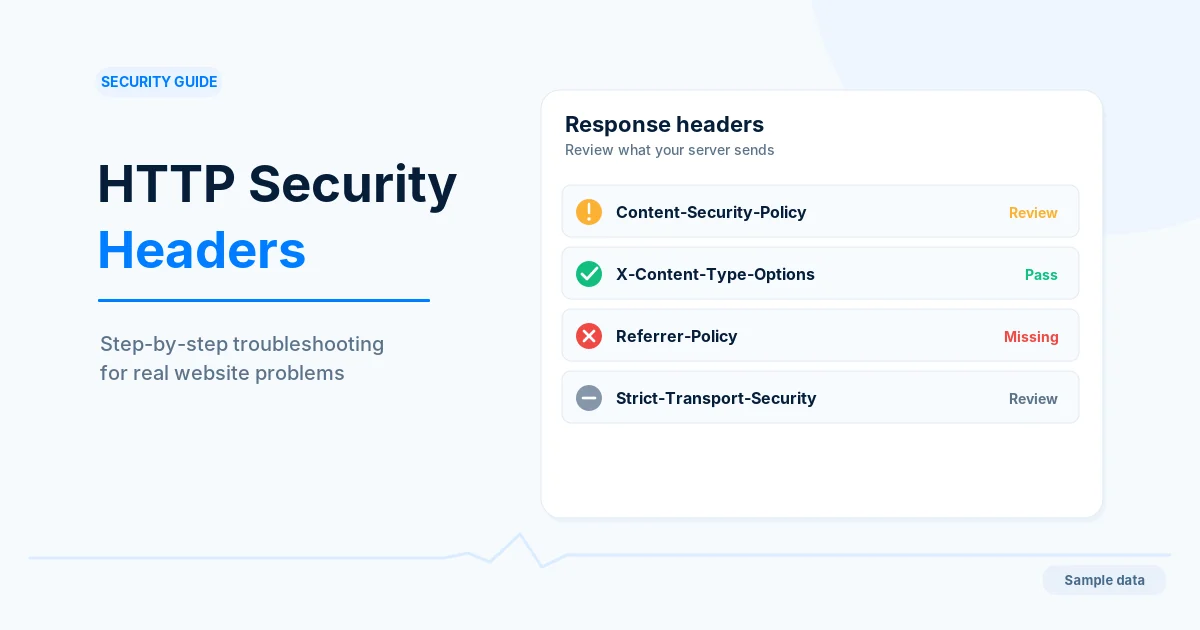
Security headers are instructions that your web server sends with each page so the browser applies extra safety rules: which scripts may run, whether other sites may frame your pages, how much of your address is shared when visitors click a link, and which browser features are available. They add a layer of protection against some common attacks. They do not make a site secure on their own, and a header set wrongly can break your own pages, so introduce them carefully.
Before you begin
Find out where headers can be set for your site: the web server configuration (IIS, Apache, nginx), your hosting control panel, a CDN or proxy such as Cloudflare, or the application code. Choose one place so the same header is not sent twice. Make sure you can test on a staging copy or on a quiet page first, and note every third-party service the site loads, such as analytics, fonts, maps, payment and video embeds.
The Crawvix header checks read the response to the home page only. A header set only on some pages or only on dynamic responses can pass the check and still be missing elsewhere, so test other templates too.
Step-by-step instructions
Step 1: Look at the headers you send now
In a terminal, curl -I https://example.com/ prints the response headers. In Chrome, open developer tools, choose the Network tab, reload, select the first request and read the Response Headers. Note which of the headers below are present.
What success looks like: You have a list of the security headers your site sends today.
Step 2: Add X-Content-Type-Options: nosniff
X-Content-Type-Options: nosniff
This tells browsers to trust the declared content type instead of guessing, which stops a file served as one type from being run as another. It is low risk, but your server must send correct content types for scripts and stylesheets, otherwise a browser may refuse them. Send it on every response, including static files. The Crawvix check passes only when the value is nosniff.
What success looks like: Responses include X-Content-Type-Options: nosniff and the site still works.
Step 3: Restrict who can frame your pages
The modern way is the frame-ancestors directive of a Content-Security-Policy:
Content-Security-Policy: frame-ancestors 'self'
Use 'none' if nobody should frame your pages, or list the specific sites that legitimately embed them. The older X-Frame-Options: SAMEORIGIN (or DENY) does the same job in older browsers; its ALLOW-FROM value is not honored by modern browsers. If your own pages are embedded in another site, such as a partner portal, list those sites rather than blocking them. If you already send a Content-Security-Policy, add frame-ancestors to that one policy instead of sending a second header. The Crawvix check passes with either frame-ancestors or a valid X-Frame-Options, and fails when frame-ancestors allows every site.
What success looks like: Your pages cannot be framed by sites you did not approve, and legitimate embeds still work.
Step 4: Set a Referrer-Policy
Referrer-Policy: strict-origin-when-cross-origin
This limits what is sent in the Referer header when visitors follow links: the full address for your own pages, only the site name to other sites, and nothing when going to a less secure address. Modern browsers use this value as their default, but an explicit header makes the behavior consistent. Stricter values such as same-origin or no-referrer are valid, but may affect analytics that depend on referrers. The Crawvix check accepts any recognized value except unsafe-url, which sends the full address everywhere.
What success looks like: The response includes a Referrer-Policy and your analytics still behave as you expect.
Step 5: Turn off browser features you do not use
Permissions-Policy: camera=(), microphone=(), geolocation=()
This disables the named features for your pages and for any frames on them. Only disable features your site does not need. A booking page that uses location, or an embedded video that needs fullscreen, will break if you switch the feature off for it. Support and the list of available features vary between browsers, so check the current documentation.
What success looks like: Unused features are disabled and no page that needs one has lost it.
Step 6: Introduce a Content-Security-Policy in report-only mode
A Content-Security-Policy (CSP) tells the browser which sources may supply scripts, styles, images and more. It is the most powerful header here and the easiest to get wrong. Start in report-only mode, which reports what would be blocked without blocking anything:
Content-Security-Policy-Report-Only: default-src 'self'; object-src 'none'; base-uri 'self'; frame-ancestors 'self'
This starting point is deliberately strict and will report your inline scripts and every third-party source. Do not copy it into an enforcing header unchanged. Add the sources your site really needs, collect the violation reports (see the documentation for report-to and the older report-uri) or watch the browser console, and prefer nonces or hashes over 'unsafe-inline' where you can. Browsers do not support frame-ancestors or reporting in a CSP delivered by a meta tag, so use a header. When reports are quiet across your key pages, rename the header to Content-Security-Policy.
The Crawvix check passes when an enforcing policy is present and fails when there is only a report-only one. It checks for the presence of a policy, not its strength: a policy full of 'unsafe-inline' and wildcards passes the check but protects much less.
What success looks like: An enforcing policy is live after a period of clean reports, and your pages, forms and embeds work.
Step 7: Consider HSTS separately
Strict-Transport-Security tells browsers to use HTTPS only for your site for a period. It has its own Crawvix check. Before you enable it, make sure every page and every subdomain you include works over HTTPS. Begin with a short max-age, raise it once everything works, and be cautious with includeSubDomains and with the preload list, which is hard to undo.
What success looks like: HSTS is on only after you have confirmed HTTPS works everywhere it applies.
Step 8: Test pages and the Crawvix result
Check the home page, a typical content page, a form, a login page and an error page. Look for new console errors, blocked scripts or broken embeds. Then run the Crawvix header checks again.
What success looks like: No new breakage and the header checks pass.
Final verification checklist
You know where headers are set, and each header is sent from only one place.
X-Content-Type-Options: nosniffis sent on all responses.Framing is restricted with
frame-ancestorsorX-Frame-Options, and approved embeds work.A Referrer-Policy is set and is not
unsafe-url.A Permissions-Policy disables only features you do not use.
A Content-Security-Policy was tested in report-only mode before being enforced.
Several page types, not only the home page, were tested for breakage.
Common mistakes to avoid
Enforcing a CSP copied from the internet without testing it on your pages.
Adding
'unsafe-inline'and*until the errors stop, which leaves little protection.Setting the same header at both the CDN and the server so it appears twice.
Blocking framing and breaking your own embeds or partner pages.
Disabling a browser feature a page needs, such as location or fullscreen.
Turning on a long HSTS period before every subdomain works over HTTPS.
Troubleshooting
The header does not appear
Check that you edited the layer that actually serves the response. A CDN, proxy or caching layer may serve a stored copy without the new header until it is cleared. Check with curl -I.
The header appears twice
Your application and the server or CDN are both adding it. Remove one. Duplicate values can behave differently across browsers.
Scripts, fonts or images stopped loading after adding CSP
The console names the blocked source and the directive. Add that source to the right directive if you trust it, or remove the resource. Return to report-only while you adjust.
A meta tag CSP does not satisfy frame protection
A meta tag cannot carry frame-ancestors. Send the header instead.
The check passes but another page lacks the header
The checks read the home page. Test other templates and static files, and apply the header site-wide.
My CDN or host will not let me set headers
Many hosts offer rules in a control panel, or a configuration file such as web.config on IIS. Ask your host which you can use.
Frequently asked questions
Will security headers improve my rankings?
We cannot promise that. They reduce certain security risks for visitors and for your site.
Which header matters most?
It depends on your site. A well-tested Content-Security-Policy offers the most protection against injected scripts but takes the most care. nosniff and a frame restriction are quick, low-risk starting points.
What about X-XSS-Protection?
It is an older header that modern browsers have retired or ignore, and it is not part of the checks. Rely on a Content-Security-Policy and safe coding instead, and check current guidance before adding it.
Is a meta tag enough?
For a few things, such as Referrer-Policy in some cases, but not for frame control or reporting. Headers are the dependable option.
Related guides
Official references
Browser behavior and header support change, so a human should check these sources for the current wording before this guide is published.
https://developer.mozilla.org/en-US/docs/Web/HTTP/Guides/CSP
https://developer.mozilla.org/en-US/docs/Web/HTTP/Reference/Headers/X-Content-Type-Options
https://developer.mozilla.org/en-US/docs/Web/HTTP/Reference/Headers/Referrer-Policy
https://developer.mozilla.org/en-US/docs/Web/HTTP/Reference/Headers/Permissions-Policy
https://developer.mozilla.org/en-US/docs/Web/HTTP/Reference/Headers/Strict-Transport-Security
https://cheatsheetseries.owasp.org/cheatsheets/HTTP_Headers_Cheat_Sheet.html
Next step: See how Crawvix checks a website and capture a baseline once scanning opens. This guide provides technical information, not a guarantee of security, rankings or index inclusion.