
 Crawvix Editorial Team
· Published October 28, 2026 · Last updated October 27, 2026 · 2 min read
Crawvix Editorial Team
· Published October 28, 2026 · Last updated October 27, 2026 · 2 min read
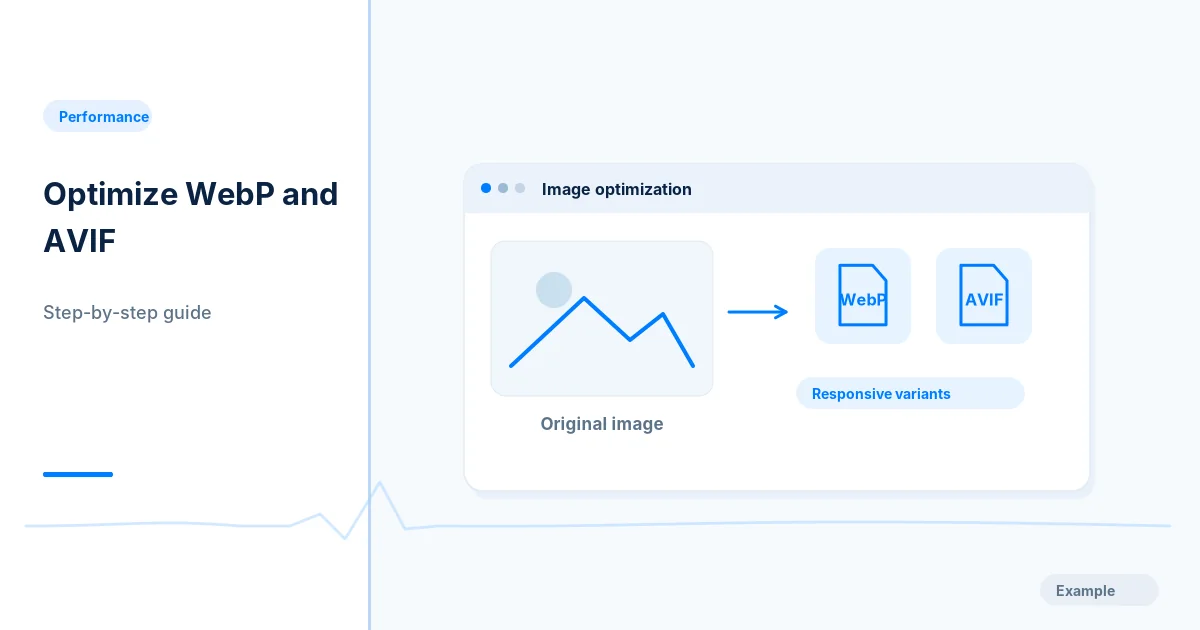
Optimized images reduce transfer costs and frequently improve mobile page loads. The best results come from combining good compression with correct dimensions, responsive delivery and intentional loading behavior.
Before you begin
You will need access to the website or account involved, a list of important public URLs, and permission to make the relevant changes. Save a backup of configuration before editing DNS, server rules, source code or search settings. A successful check means the specified condition was verified—not that Google or Bing will index or rank the page.
Step-by-step instructions
Step 1: Measure image inventory
List image URLs, file formats, intrinsic dimensions, displayed sizes and transfer bytes. Prioritize large above-the-fold images and repeated card assets.
What success looks like: You have a ranked list of wasteful transfers.
Step 2: Choose output formats
Encode photo-like assets to efficient WebP or AVIF variants; preserve PNG or SVG only where they are required for particular use cases. Compare image quality at actual display size rather than relying on file size alone.
What success looks like: The new asset remains visually acceptable.
Step 3: Generate responsive sizes
Create sensible widths for desktop, tablet and phone layouts and use srcset/sizes so browsers can choose suitable variants. Avoid shipping a huge desktop hero to a narrow phone.
What success looks like: Network captures show the expected image size on each viewport.
Step 4: Set loading behavior
Use eager loading for an above-the-fold LCP image when appropriate, lazy-load offscreen media, and provide width/height or aspect-ratio to prevent layout shifts.
What success looks like: Images render without needless delay or CLS.
Step 5: Recheck and preserve originals
Record before/after byte counts, test Safari/Chrome/Firefox support paths and keep source masters for future edits.
What success looks like: Pages retain image quality and accessibility after the conversion.
Final verification checklist
You have a ranked list of wasteful transfers.
The new asset remains visually acceptable.
Network captures show the expected image size on each viewport.
Images render without needless delay or CLS.
Pages retain image quality and accessibility after the conversion.
Common mistakes to avoid
Converting every asset without visual QA.
Using only a compressed format but still sending oversized dimensions.
Lazy-loading the LCP hero.
Frequently asked questions
Is WebP always better than JPEG?
Often for comparable quality, but actual file size and quality vary by image and encoder.
Can a WebP logo have transparency?
Yes. WebP supports transparency; suitable browser and integration support should be tested.
Related guides
Official references
Next step: See how Crawvix checks a website and capture a baseline once scanning opens. This guide provides technical information, not a guarantee of rankings, 100-point Lighthouse scores or index inclusion.