
 Crawvix Editorial Team
· Published October 28, 2026 · Last updated October 27, 2026 · 2 min read
Crawvix Editorial Team
· Published October 28, 2026 · Last updated October 27, 2026 · 2 min read
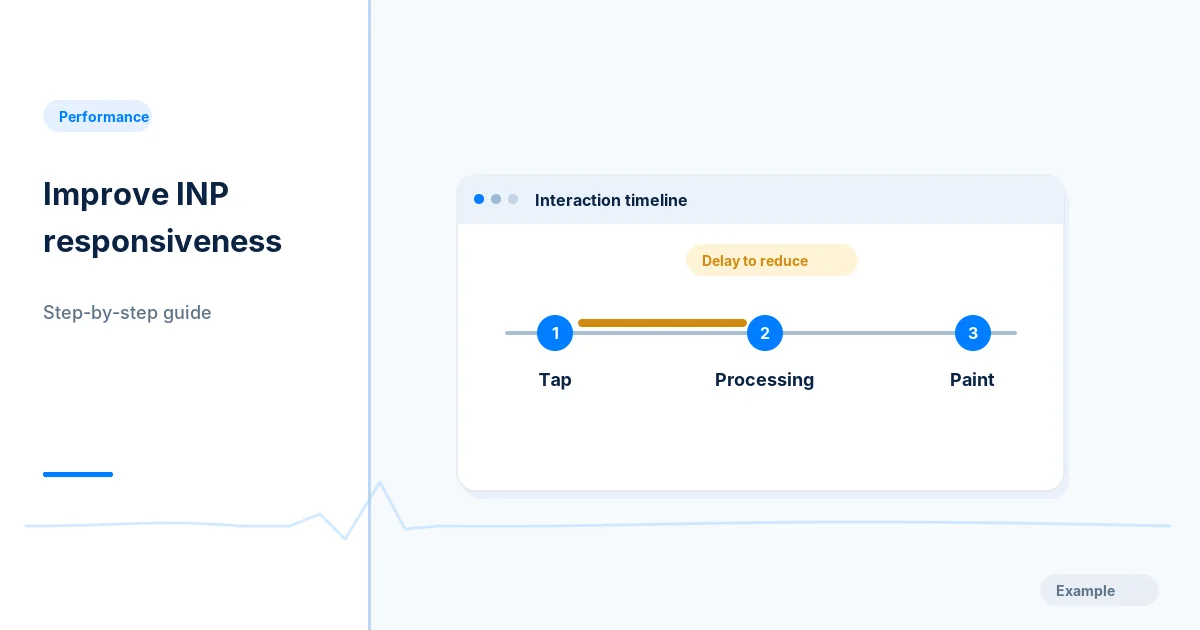
Interaction to Next Paint (INP) describes how quickly a website visually responds after user interactions. Complex JavaScript and main-thread tasks can make buttons feel frozen even when initial loading is fast.
Before you begin
You will need access to the website or account involved, a list of important public URLs, and permission to make the relevant changes. Save a backup of configuration before editing DNS, server rules, source code or search settings. A successful check means the specified condition was verified—not that Google or Bing will index or rank the page.
Step-by-step instructions
Step 1: Find slow real interactions
Use real-user field metrics where available and reproduce slow clicks, typing or menu actions in a browser profiler. Identify which interactions are most affected.
What success looks like: You can name an interaction that causes noticeable latency.
Step 2: Inspect long main-thread work
Review event handlers, long tasks, rendering, third-party scripts and expensive synchronous computations. Inspect performance traces rather than guessing from bundle size alone.
What success looks like: A specific costly task or rendering phase is identified.
Step 3: Reduce handler work
Break up lengthy work, delay nonurgent computations and avoid doing heavy loops synchronously during user input. Keep event listeners scoped and release resources appropriately.
What success looks like: The UI can respond promptly while other work proceeds safely.
Step 4: Check rendering costs
Reduce unnecessary DOM updates, huge list rerenders and layout thrashing. Virtualize very long lists when appropriate and test that focus and keyboard controls still work.
What success looks like: The interaction avoids excessive repeated render work.
Step 5: Validate representative devices
Test actual user flows on slower devices, and keep field INP separate from Lighthouse Total Blocking Time (TBT). Compare after deployment with adequate field data.
What success looks like: Measured responsiveness improves without losing functionality.
Final verification checklist
You can name an interaction that causes noticeable latency.
A specific costly task or rendering phase is identified.
The UI can respond promptly while other work proceeds safely.
The interaction avoids excessive repeated render work.
Measured responsiveness improves without losing functionality.
Common mistakes to avoid
Assuming TBT is numerically interchangeable with INP.
Removing essential interaction logic to satisfy a metric.
Only testing on a fast development laptop.
Frequently asked questions
What is a good INP?
Core Web Vitals guidance targets INP at or below 200 milliseconds at p75.
Why does my site score well in Lighthouse but feel slow?
Some real interactions occur outside a synthetic load test; field data and manual interaction profiling can reveal them.
Related guides
Official references
Next step: See how Crawvix checks a website and capture a baseline once scanning opens. This guide provides technical information, not a guarantee of rankings, 100-point Lighthouse scores or index inclusion.