
 Crawvix Editorial Team
· Published October 28, 2026 · Last updated October 28, 2026 · 7 min read
Crawvix Editorial Team
· Published October 28, 2026 · Last updated October 28, 2026 · 7 min read
DKIM (DomainKeys Identified Mail) adds a digital signature to each message you send. The matching public key is published in your DNS, so a receiving server can check that the message was signed by a server your domain authorized and that the signed parts were not changed on the way. DKIM helps receivers trust your mail and is one of the inputs DMARC uses. It does not guarantee inbox delivery.
Before you begin
List every system that sends email as your domain: your mailbox provider, the website contact form, a newsletter tool, an invoicing or helpdesk tool. Each one may need its own DKIM setup. You need access to the provider's email or domain settings and to wherever your DNS is managed. Copy any existing DNS records before changing them. DNS changes can take time to reach every resolver, depending on the TTL.
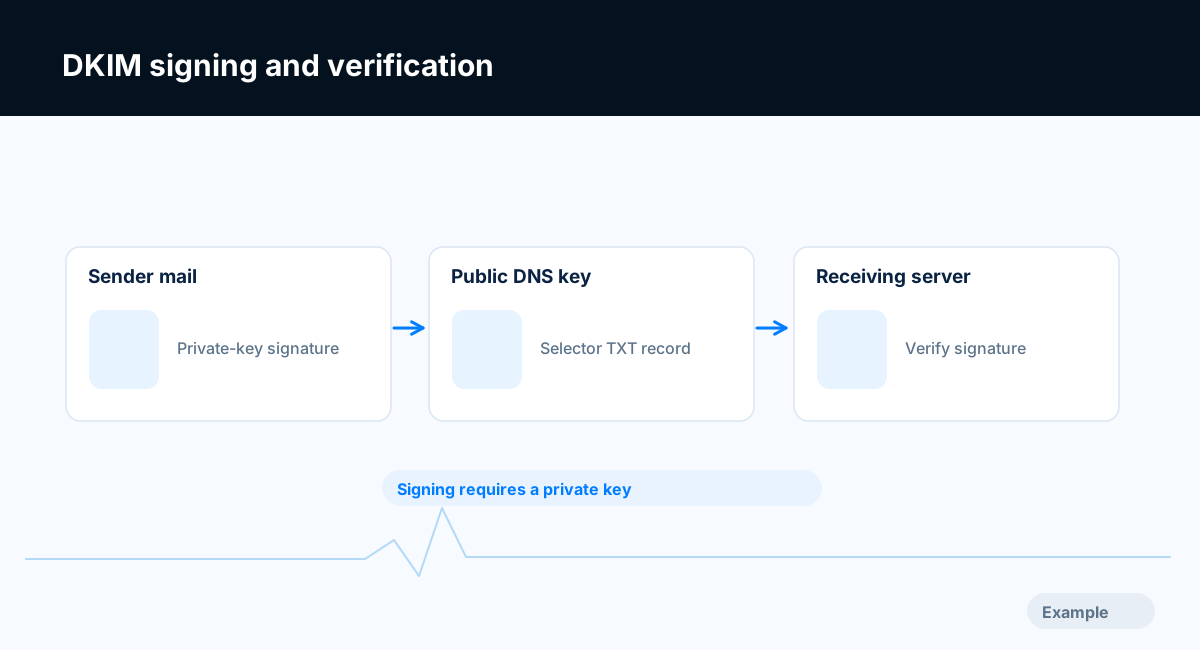
Example diagram, not a result from any real site.
Step-by-step instructions
Step 1: Understand the selector
A DKIM signature names two things: the signing domain (d=) and a selector (s=). The public key lives in a TXT record at selector._domainkey.yourdomain. The selector is just a label chosen by the sender or provider, so it can be almost any name, and one domain can have many at once, for example one per sending service. That is why a checker cannot reliably find your key without being told the selector. Providers often use names such as google, selector1 and selector2, but confirm the exact name in your provider's current instructions.
What success looks like: You know which selector each of your sending services uses.
Step 2: Turn on signing in your email provider
In the provider's admin settings, find the DKIM or domain authentication section and generate a key for your domain. The provider shows you the DNS record to publish: either a TXT record containing the public key, or a CNAME that points to a key the provider hosts. Publish exactly what the provider shows. Choose a 2048-bit RSA key if you are offered a choice. RFC 8301 sets 1024 bits as the minimum for RSA keys; the Crawvix check treats anything below 1024 bits as too weak.
What success looks like: The provider shows the key or CNAME you must publish and does not yet say signing is active.
Step 3: Publish the record in DNS
Add the record at the host name the provider gives you, for example selector1._domainkey. Many DNS panels add your domain to the end automatically, so entering the full name can produce a doubled name such as selector1._domainkey.example.com.example.com. A 2048-bit key is longer than 255 characters, so it is stored as several strings in one TXT record. Most DNS hosts split it for you; if yours does not, follow its documentation. Do not change characters inside the key.
What success looks like: A DNS lookup for the record returns the value you published.
Step 4: Start signing and confirm in the provider
Some providers only sign once you press a button such as Start authentication or Enable, after the DNS record is visible. Do this only when the provider's own check says the record is found. Until then mail is sent unsigned or signed with the provider's default domain.
What success looks like: The provider reports DKIM signing as active for your domain.
Step 5: Test with a real message
Send a message from each system to a mailbox you control. In Gmail, open it, choose Show original, and look for DKIM: PASS with your own domain beside it. In the raw headers, the DKIM-Signature line shows d= and s=; the key for that message lives at s._domainkey.d. If DKIM passes only for the sending service's domain (for example d=mailer.example), the signature is valid but does not line up with your From domain, so DMARC cannot use it. Use the service's custom domain or domain authentication setting to sign as your domain.
What success looks like: Each sender shows DKIM pass with d= set to your own domain.
Step 6: Tell Crawvix the selector
Enter the selector in your site's email settings so the DKIM check looks at exactly that name. If you enter none, Crawvix tries a list of common selector names. When none is found, the check reports Not checked yet instead of failing, because a selector can be any name and not finding one proves nothing. The check fails when a selector you entered has no key, a key that is not valid, or an RSA key below 1024 bits. It also notes keys that are in testing mode (t=y).
What success looks like: The DKIM check passes for the selector you entered.
Step 7: Plan for key rotation
Rotating keys limits the damage if a private key leaks. To rotate, publish a new key under a new selector, switch the sender to sign with it, and remove the old key only after a safe period, because messages signed with the old key may still be in transit or being verified later. Many providers handle rotation for you; check how yours does it.
What success looks like: You know how and when your sending services rotate their keys.
Final verification checklist
Each service that sends as your domain has DKIM signing turned on.
The DNS record for each selector returns the key or CNAME the provider gave you.
RSA keys are 2048 bits where the provider allows it, and never below 1024.
A test message from each sender shows DKIM pass with your own domain in
d=.The selector is entered in your Crawvix email settings.
Keys are not left in testing mode (
t=y) longer than needed.
Common mistakes to avoid
Publishing the key but never switching signing on in the provider.
Typing the full domain into a DNS panel that appends it, creating a doubled name.
Editing or re-wrapping the key text so it no longer matches.
Assuming the checker found no key because DKIM is off, when the selector name is simply different.
Leaving a third-party service signing with its own domain only.
Troubleshooting
The DNS lookup returns nothing
Check the host name, including the _domainkey part and any doubled domain. Confirm you edited the DNS host that is actually authoritative for the domain, then allow time for the old TTL to expire.
The provider says it cannot find the record
Some providers cache a failed lookup. Wait, confirm the record with an independent DNS lookup, and retry the provider's check.
DKIM passes in some messages and fails in others
Mailing lists, forwarders and security gateways can change the message body or headers after signing, which breaks the signature. Messages sent directly from your provider should still pass. Check whether the failing messages passed through a list or gateway.
The message shows DKIM pass but DMARC still fails
DMARC needs the signing domain to line up with the From domain. A signature from the service's own domain passes DKIM but does not align. Set up a custom signing domain in that service. See the DMARC guide below.
The key is rejected as too long or too short
A 2048-bit key needs the string splitting described in Step 3. A key below 1024 bits is too weak; generate a longer one.
An Ed25519 key is offered
RFC 8463 defines Ed25519 signatures for DKIM. Not every receiver verifies them, so RSA is the safe default, and some senders sign with both. Follow your provider's guidance.
Frequently asked questions
Can a domain have more than one DKIM key?
Yes. Each selector has its own key, and different services normally use different selectors.
How do I find my selector?
Look in your provider's DKIM settings, or in the raw headers of a message you sent, in the s= part of the DKIM-Signature line.
Does DKIM encrypt my email?
No. It signs the message so changes can be detected. It does not hide the content. Encryption in transit is a separate topic covered in the MTA-STS guide.
Are DKIM and SPF both needed?
Publish both. DMARC passes when either one passes and lines up with the From domain, and each covers cases where the other fails, such as forwarding. Google's sender guidelines set requirements by sender size, so read the current text linked below.
Related guides
Official references
Provider screens and sender requirements change, so a human should check these sources for the current wording before this guide is published.
Next step: See how Crawvix checks a website and capture a baseline once scanning opens. This guide provides technical information, not a guarantee of inbox delivery, rankings or index inclusion.